Export Data with DataHub
Use Datahub when you need selected plant or equipment data in Excel for offline analysis or investigation.
DataHub is in Beta, so its fields and steps may change. Your account needs reporting access, and you can export only plants available to you. If Datahub is not visible, ask your SolarSENS administrator to confirm your access.
Choose the data resolution
Section titled “Choose the data resolution”Open Datahub, then choose the resolution that matches your task:
| Resolution | Use it for |
|---|---|
| Daily Aggregates | Trend analysis, day-to-day comparisons, and compact reporting datasets |
| 5-minute Intervals | Detailed investigation and higher-resolution equipment analysis |
You export by plant. Portfolio-level export isn’t available yet.
Build the dataset
Section titled “Build the dataset”In Dataset Builder:
- Select one or more data types:
- Plant Level Data
- Raw Weather Station Data
- Inverter Data
- Meter Data
- String Data
- Subplant Data
- For each selected type, choose the columns to include.
- Review the sheet preview. Each selected data type becomes a separate workbook sheet when usable data is available.
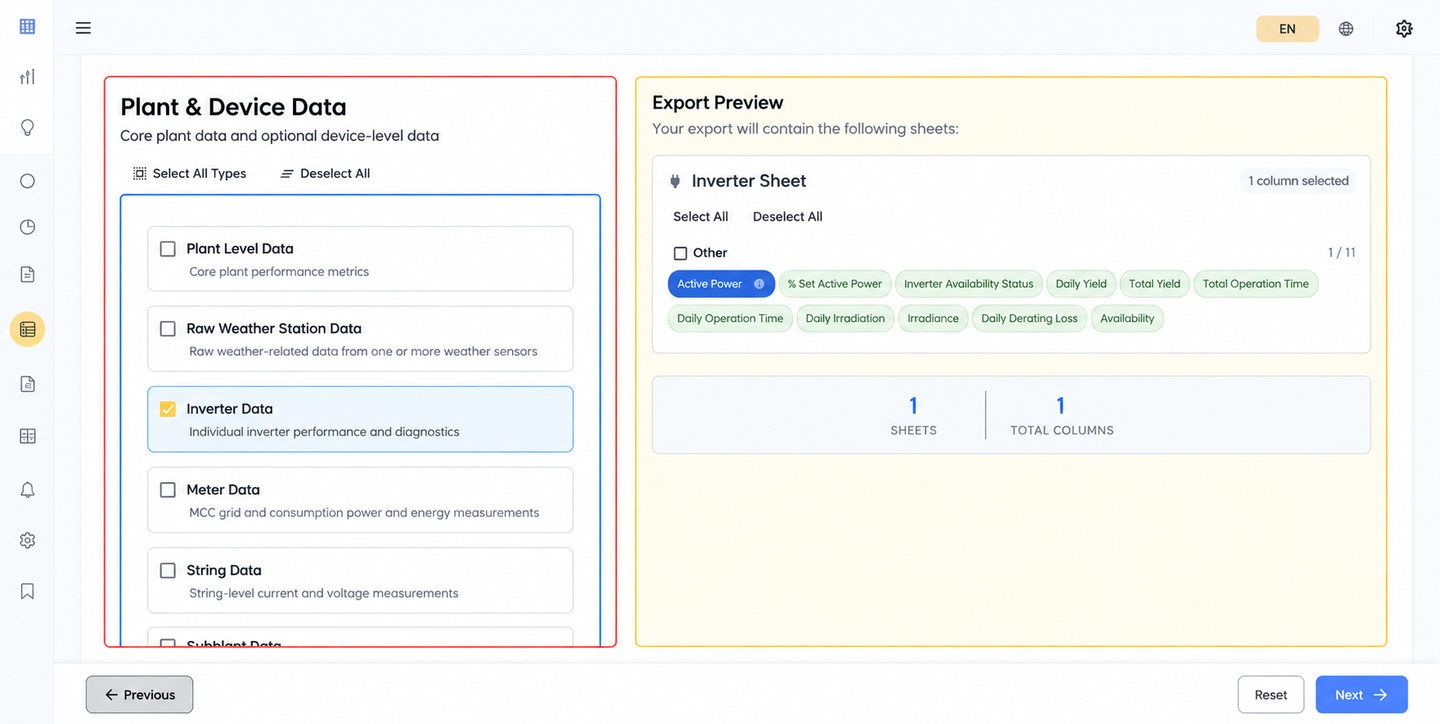
The available columns depend on the resolution and data type. Choose only the fields needed for the analysis; this keeps the workbook easier to review.
Plant-level metrics are grouped by purpose in the selector. Available performance fields include PR Corrected, and irradiation fields distinguish sensor-accumulated and total irradiation from effective irradiation derived for performance calculations. Choose the field that matches the comparison you intend to make.
Select plants and a period
Section titled “Select plants and a period”In Project & Period:
- Choose a start and end date, or use Last 7 Days, Last 30 Days, Current Month, or Last Month.
- Dates are calendar days in Malaysia time (UTC+8), and the range includes the whole start and end days.
- Keep the date range within 31 days.
- Search or browse the available portfolios, then select one or more plants.
- Review the selected-plant count.
Generate and download the workbook
Section titled “Generate and download the workbook”Select Generate Export. SolarSENS starts an export task and opens its progress view.
- Keep the progress view open, or return to it with View Progress.
- When the task succeeds, the workbook downloads automatically.
- If the task fails, review the selections before starting a new export.
How long an export takes varies.
Understand missing or delayed data
Section titled “Understand missing or delayed data”DataHub exports processed data, so the most recent readings may not appear until processing for that plant and period has finished.
If a sheet or value is missing:
- Confirm that you selected the intended plant, resolution, data type, column, and period.
- Try a smaller date range or fewer data types.
- Contact your SolarSENS administrator if the result remains missing or appears stale.
A blank or missing result doesn’t mean the plant produced nothing. It means there was no usable processed result for that selection.
Related workflows
Section titled “Related workflows”- Reports for standard reports and reusable customized views
- Performance and Loss Analysis for investigating performance inside SolarSENS