Alarm Triage
Use the alarm list to decide which alarms need action, record what you’ve done about them, and hand the work on. The tabs and actions you see depend on your account’s access.
Work an alarm
Section titled “Work an alarm”- Open the alarm list at the right scope:
- Operation Overview → Alarms to search across plants. Filter by plant to focus the list.
- Plant Monitoring → Alarms to work within one plant.
- Narrow the list with filters until only the alarms that need attention remain.
- Select a row to expand its details and check the status and end time.
- Acknowledge or Clear the alarm to match the work done.
- Where available, select Add Work Order to send the fix to the field.
Narrow the list
Section titled “Narrow the list”The list opens with Active alarms selected. You can filter by:
| Filter | Notes |
|---|---|
| Status, severity, or category | Category and severity can’t be combined: selecting one clears the other. |
| Plant | Fleet scope only. |
| Device type | Narrows the device-label list to devices of that type. |
| Device label | Pick one device. |
| Start and end date | Limits the list to a time range. |
Clear a filter to return to the broader list.
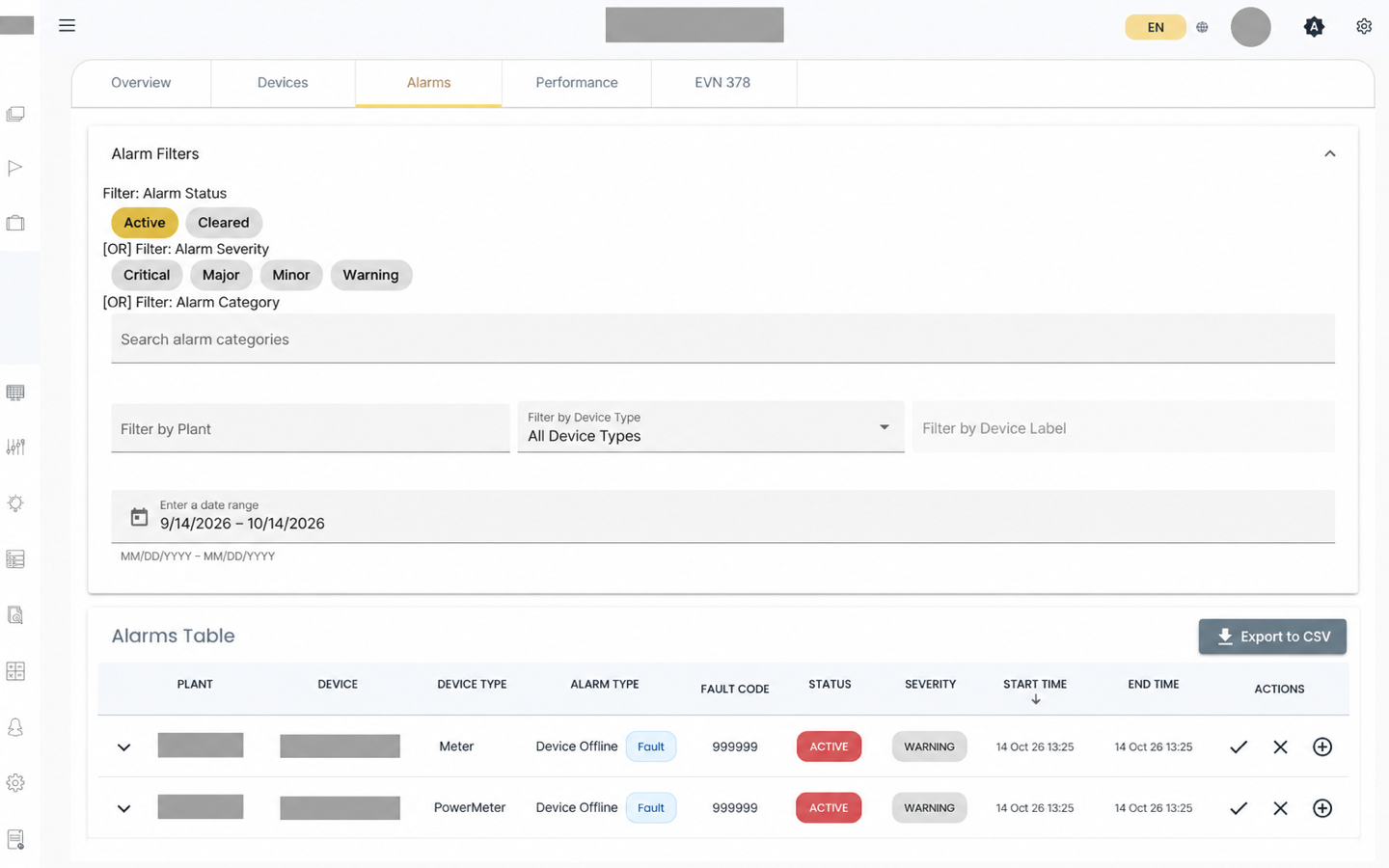
Search by category when you know the kind of condition you’re looking for. Type part of a category name in Search alarm categories and pick a suggestion. The category appears as a removable chip; remove it to search without it. Use category when the equipment condition is the best starting point, and severity when urgency is.
The list is paginated. Select a column heading to sort by fields such as alarm type, status, severity, or start time.
Read an alarm
Section titled “Read an alarm”Depending on the screen width and the alarm, a row can show:
- plant
- device label and device type
- alarm type and fault code
- status and severity
- start and end time
- available actions
Expand a row for the fault description, alarm type, inverter fault code, and any other context sent with the alarm.
Acknowledge or clear
Section titled “Acknowledge or clear”| Action | What it records |
|---|---|
| Acknowledge | Someone has seen the alarm. The condition may still be present. |
| Clear | The alarm condition has been cleared. |
The list refreshes after either action. Neither one is a record of the repair itself; keep that in a work order.
Export the list
Section titled “Export the list”Select Export to download the current filtered list as a CSV. It includes plant, device, device type, alarm type, status, severity, start time, end time, acknowledgement status, and inverter fault code.
The export can take a moment, because SolarSENS collects the full filtered result before building the file. When the list is empty, there is nothing to export.
Hand off to a work order
Section titled “Hand off to a work order”Where available, Add Work Order opens a work-order form from the alarm. The alarm and the work order stay separate records unless your deployment links them, so copy the alarm’s plant, device, type, and time into the work-order description. Create and assign covers the rest.
Keep investigating
Section titled “Keep investigating”- Alarm Analytics compares alarm frequency, duration, and attributed energy loss over a time range.
- Plant Monitoring shows the affected equipment in context.
- String Analytics compares strings, where the plant and equipment support it.
Device health, alarms, and string performance explains how alarms differ from device-health snapshots and string results.